
Introducing the nOps Artifact Library: Skills and artifacts by persona
Today, we're announcing the nOps Artifact Library, a catalog of skills and artifacts built by nOps and organized by role. Finance, FinOps, Leadership, Procurement, Budget Owners, Engineering and new users can now easily start with the questions, views and analyses that their role uses the most.
For example, ask Claude “What skills does nOps have for finance?” and it lists the ones for that role, such as a savings report or enterprise contract tracking. Pick one and ask Claude to install it, and you’ll see exactly what the skill contains before you choose to save it. Every new skill is available the moment nOps publishes it, and runs on your own nOps data through the nOps MCP connector so any AI assistant can fetch it.
Start from your role
Here’s what’s in the nOps Library at launch, and the roles each one is for:
Role | Skill or artifact | What you get |
|---|---|---|
Finance | All Cloud Savings | The savings nOps already delivers through commitment management, plus what open recommendations would add |
Finance, FinOps | Savings Ledger (commitment savings) | An interactive page of the RI, reservation and Savings Plan savings nOps delivered, by month and account |
Engineering | Usage Recommendation Savings | See how efficiently your infrastructure runs and where you can optimize further |
Finance, FinOps, Leadership, Procurement | Cloud Contract Tracker | Track cloud commitments such as PPAs, MACCs and vendor contracts in one place |
Finance, FinOps, Budget Owners, Leadership | Showback | Cost allocation and COGS by team, product or business unit |
New Users (new customers) | Welcome to nOps | A quick-start guide to your spend, anomalies and recommendations in nOps |
New Users (existing customers) | Welcome to nOps | Walks a new teammate through the reports, savings and integrations your organization already has, so nOps feels familiar from day one |
Get the cost answers you need
Connecting your AI assistant to nOps opens up a wealth of cost and usage data. The nOps Library makes it easier for you to put that data to work in three ways:
- A starting point for your role: get ready-to-use workflows and analyses tailored to your day-to-day needs, whether you manage FinOps, own a budget, lead a team or are new to nOps.
- New skills the day they ship: access new nOps skills and artifacts as soon as they're published, without waiting for a plugin release.
- Always the latest from nOps: get the latest versions of the reports and skills built by nOps, including those developed specifically for your organization by your nOps account team.
How the nOps Artifact Library Works
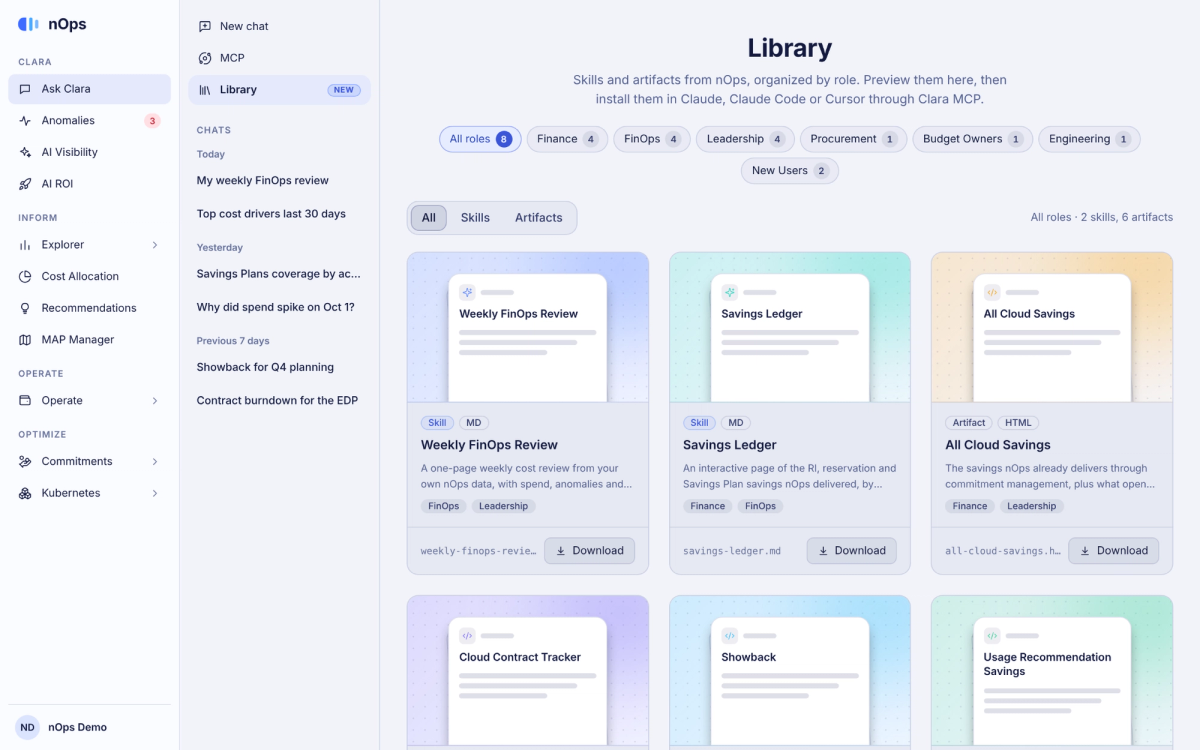
Skills and artifacts: a library inside Clara where nOps publishes two kinds of content, each tagged with the roles it’s for. A skill teaches your AI assistant a complete workflow, such as the Weekly FinOps Review or the Savings Ledger. An artifact is a ready-made report or dashboard, such as the Welcome to nOps quick-start. Ask your assistant what’s available, for everyone or just for your role, and it lists the matching items through the Clara MCP connector. In the Claude desktop app, the skill you pick appears as a Save skill card: you read exactly what nOps published, then click Save. You can also browse every item by role, preview it and download it from Ask Clara → Library in nOps.
How it’s different: every item is curated by nOps and you stay in control. Only nOps staff can publish, and every upload is audited. Nothing is installed until you approve it. Artifacts are checked on upload and served with a content-security policy that blocks network calls. The library holds no customer data: an installed skill reads your own Clara data through the same nOps sign-in and account scoping as every other Clara tool.
The value for you: a new nOps analysis arrives from one sentence of chat, picked for your role, and runs on your own data from then on with a single prompt or slash command.
See it in the nOps Library
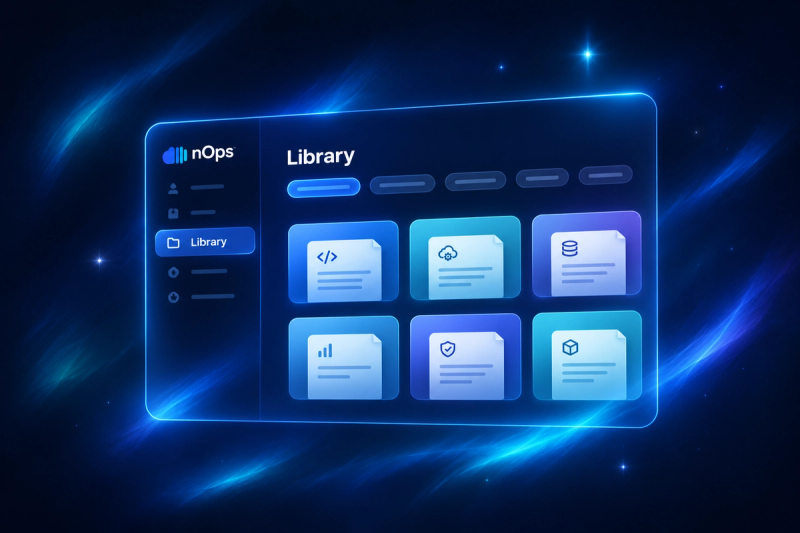
Open Ask Clara → Library in nOps and every skill and artifact is there, each tagged with the roles it’s for.
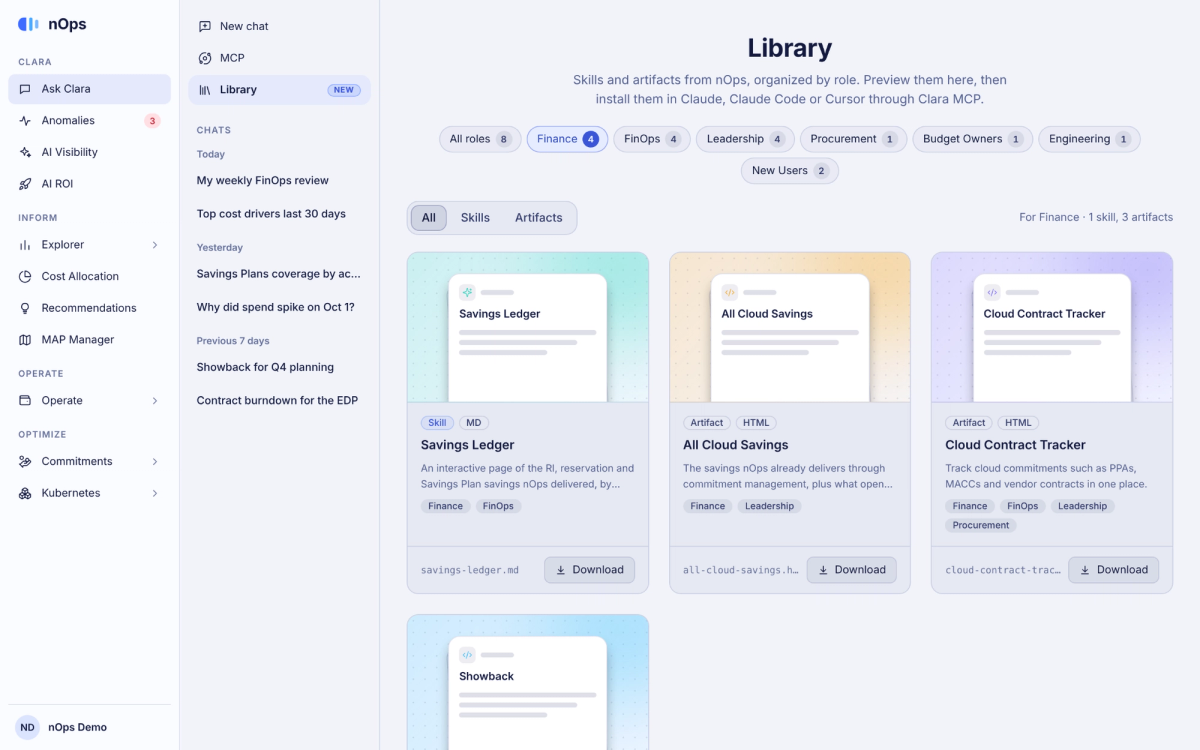
Pick your role and the Library narrows to what’s made for you. Finance sees the Savings Ledger, All Cloud Savings, Cloud Contract Tracker and Showback.
Open any item to see what it gives you, and copy the one line that installs it in your AI assistant.
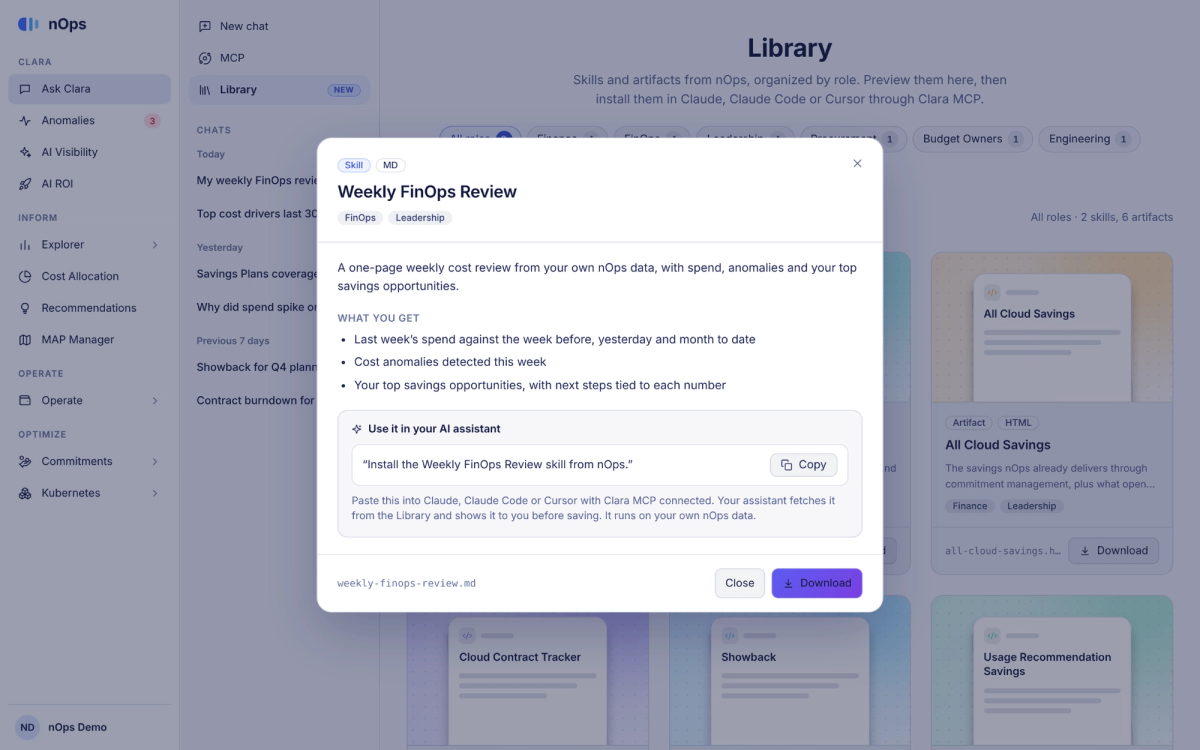
- What do the screenshots show? The nOps Library: the full catalog, the same catalog filtered to Finance, and the Weekly FinOps Review preview with the prompt that installs it.
- What result should the customer expect? The right skill for their role, found in seconds and installed in about two minutes with one line of chat. In our own account, the Weekly FinOps Review then produced a one-page review for October 29 to November 4 from a single command: spend against the week before, this week’s anomalies, and $19,671 a month of savings across 171 recommendations.
Go from catalog to answer in five steps
1. Turn on Clara MCP (admin, one time). In the nOps web app, open Ask Clara → MCP & Slack and enable Clara MCP for your organization.
2. Connect Clara to Claude. On the Clara MCP card, click Install, then Add to Claude: it copies the connector URL and opens Claude's add-connector dialog. Name it, paste the URL, click Add, then Connect, and sign in with your nOps account. Cursor and Claude Code have their own guides on the same card. You need to have signed in to the nOps web app at least once first.
3. See what's available for your role. Ask Claude: “What skills does nOps have for FinOps?”, or name your own role, such as finance, engineering or budget owners. Claude lists the matching skills and artifacts with a short description of each.
4. Install one. Ask: “Let's install the Weekly FinOps Review skill.” Claude fetches it and shows a Save skill card. Open Content to read it, then click Save. In Claude Code or Cursor, Claude saves it to your skills folder instead.
5. Use it. Type /weekly-finops-review, or just ask for “my weekly FinOps review”, in any chat.
Frequently Asked Questions
How do I find the skills for my role?
Ask your assistant for your role, such as “What does nOps have for budget owners?”, or open Ask Clara → Library in nOps and pick your role. Every item is tagged for one or more of Finance, FinOps, Leadership, Procurement, Budget Owners, Engineering and New Users.
Which AI assistants can install them?
Any assistant connected to the Clara MCP connector can list and fetch them. Claude desktop shows a Save skill card; in Claude Code and Cursor, the assistant saves the skill to your skills folder.
Do I need the Clara plugin?
No. The nOps Library works over the Clara MCP connector the nOps web app sets up, so you don’t need to install or upgrade a plugin to get new skills.
Whose data does a skill use?
Only yours. An installed skill reads your Clara data through your own nOps sign-in, with the same account scoping as every other Clara tool. The library itself holds no customer data.
Can I change a skill after I install it?
Yes. Once you save a skill or artifact, it’s your own copy, so you can edit it to fit how your team works.