Introducing Oracle Cloud Infrastructure (OCI) in nOps
Today, we're announcing the Oracle Cloud Infrastructure (OCI) integration in nOps.
nOps now reads the FOCUS cost reports Oracle generates for your tenancy, so your Oracle spend sits next to your AWS, Azure and Google Cloud costs in one place. Setup is one Oracle Resource Manager stack and one connection code. There's no bucket, export or storage to create, and nOps gets read-only access to your cost reports and nothing else. It's built for FinOps and cloud platform teams who run Oracle Cloud alongside other clouds.
Why Oracle costs end up in a silo
- Oracle spend lives in its own console. Teams that run Oracle next to AWS, Azure or Google Cloud end up stitching reports together by hand just to see their total cloud bill.
- Granting access feels risky. Connecting a cost tool usually means creating users, policies and keys by hand, and your security team wants to know exactly what a vendor can and can't see.
- Oracle's setup is easy to get wrong. Oracle keeps cost reports in a bucket it owns, in a separate tenancy, so an ordinary read policy doesn't reach them. A missing statement shows up only as a vague "not authorized" error.
One stack, one code, read-only access to your cost reports
- Guided setup in two steps: Pick Oracle Cloud in Settings, name the integration and copy your nOps public key. Click Deploy to Oracle Cloud and Resource Manager opens with the nOps stack already loaded. Run it, copy the connection code it outputs, paste it into nOps and click Verify.
- Read-only by design: The stack creates one nOps user that can only use an API key (no console password), one group, and one policy in your root compartment. That policy lets nOps read your cost and usage reports and check whether your tenancy belongs to an Oracle organization. nOps can't see, create, change or delete anything in your tenancy. You only ever handle the public key: the private key stays in nOps's encrypted secret store, and the connection code holds no secret.
- Verification you can read: Before an integration goes active, nOps checks from its own servers that the API key signs in, that it can list your FOCUS reports, and that it can open one. If a check fails, nOps tells you exactly what to fix. It retries a few times first, because new keys and policies take a few minutes to apply in Oracle.
- A year of history, not just today: Once verified, nOps loads the reports Oracle has kept, up to the last 12 months, then checks for new ones every day. Because the reports use FOCUS, the open standard for cost data, your Oracle costs line up with your other clouds.
What connecting Oracle looks like
We connected nOps's own Oracle tenancy the same way you will. Here's the whole flow.
Start in Settings
Open Settings and scroll to Cloud Provider Onboarding. Oracle Cloud Infrastructure sits right next to AWS, Google Cloud and Azure.

Deploy the nOps stack
Name the integration and click Generate key. nOps creates a key pair just for this integration and shows you the public half. Copy it, then click Deploy to Oracle Cloud. Resource Manager opens in a new tab with the nOps stack loaded, so the wizard stays open while the stack runs.
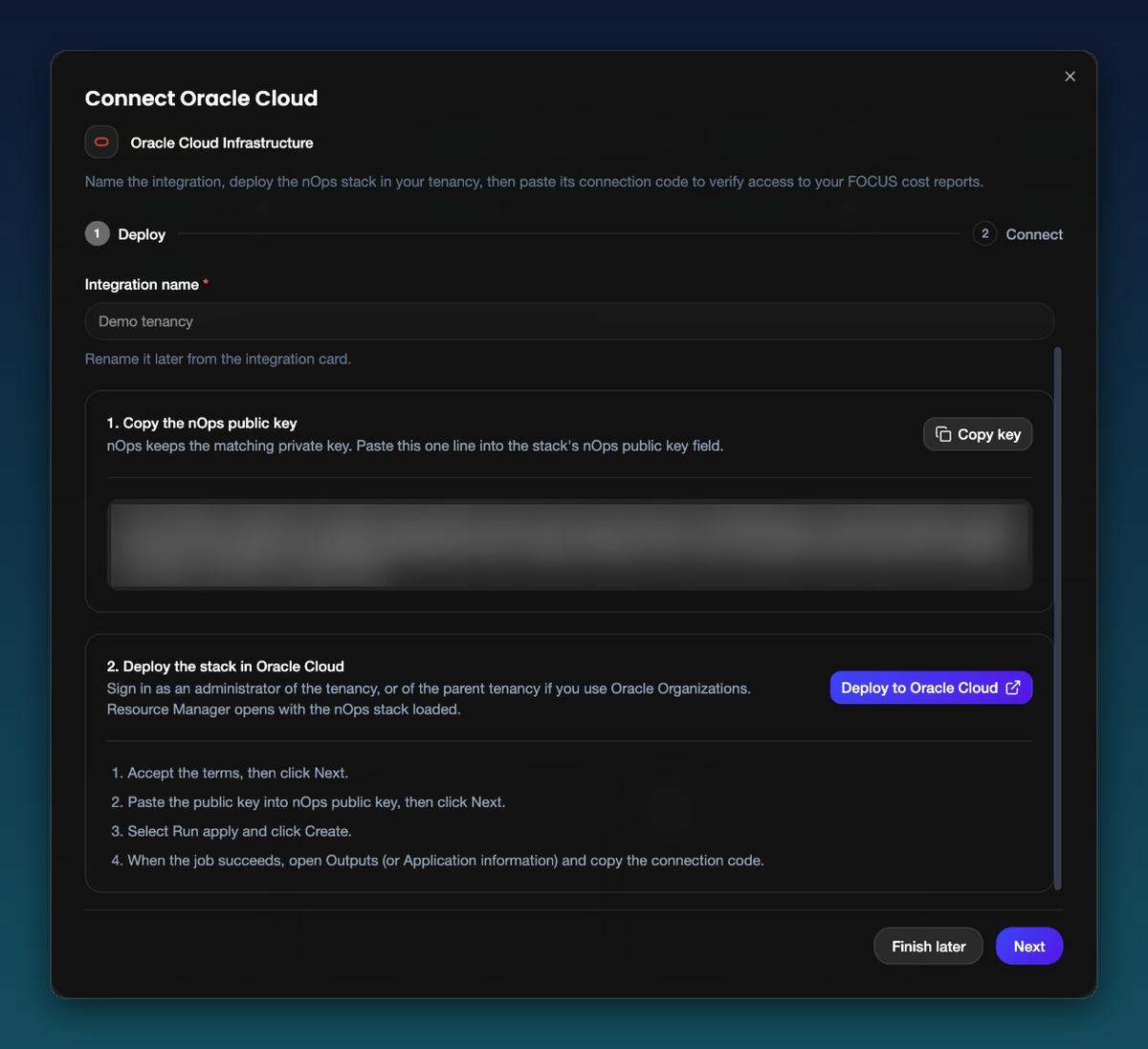
Want to read the code first? The stack is public Terraform, and the button always loads a pinned, tagged release, so the code you read on GitHub is the code that runs.
Paste the code and verify
When the apply job finishes, copy nops_connection_code from its Outputs and paste it into the Connect step. The code lists your tenancy, the nOps user, the key fingerprint and your home region. Nothing in it is secret.
Click Verify and nOps checks that it can sign in, list your cost reports and read one. When everything passes, the button turns into Done and your integration is active. If something's missing, you'll see the fix for that exact check.
Check on it anytime
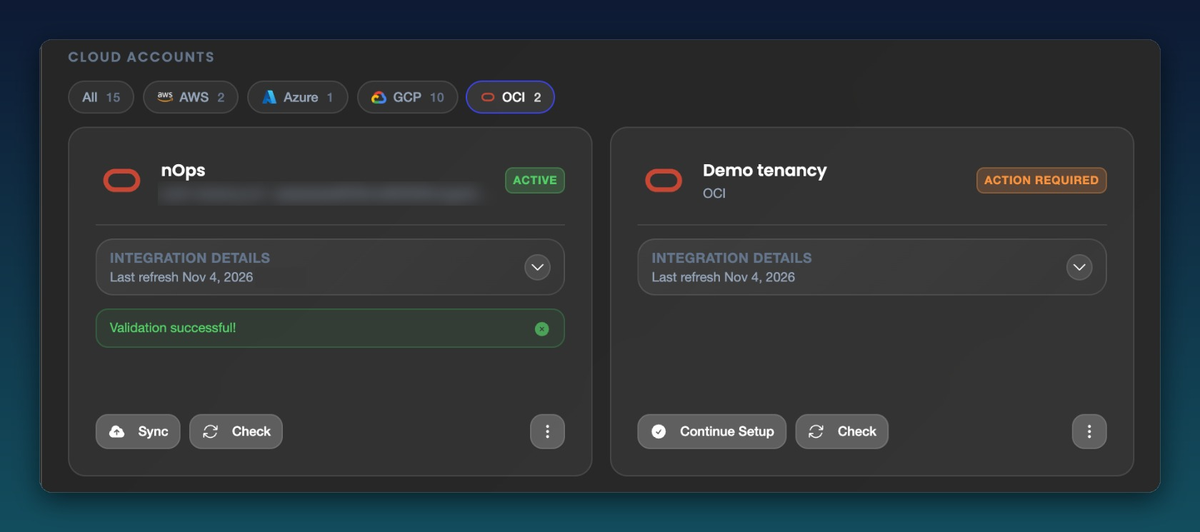
Every Oracle tenancy gets its own card in Settings. Active means nOps can read your reports. Action Required means setup isn't finished, and Continue Setup picks up right where you left off, with the same key, so a stack you've already run still works. Click Check whenever you want to re-run verification.
See Oracle next to every other cloud
Once your reports land, Oracle shows up in Explorer as its own cost entity, right next to AWS, Azure and Google Cloud. Group by Cost Entity and your whole multi-cloud bill becomes one chart, day by day.
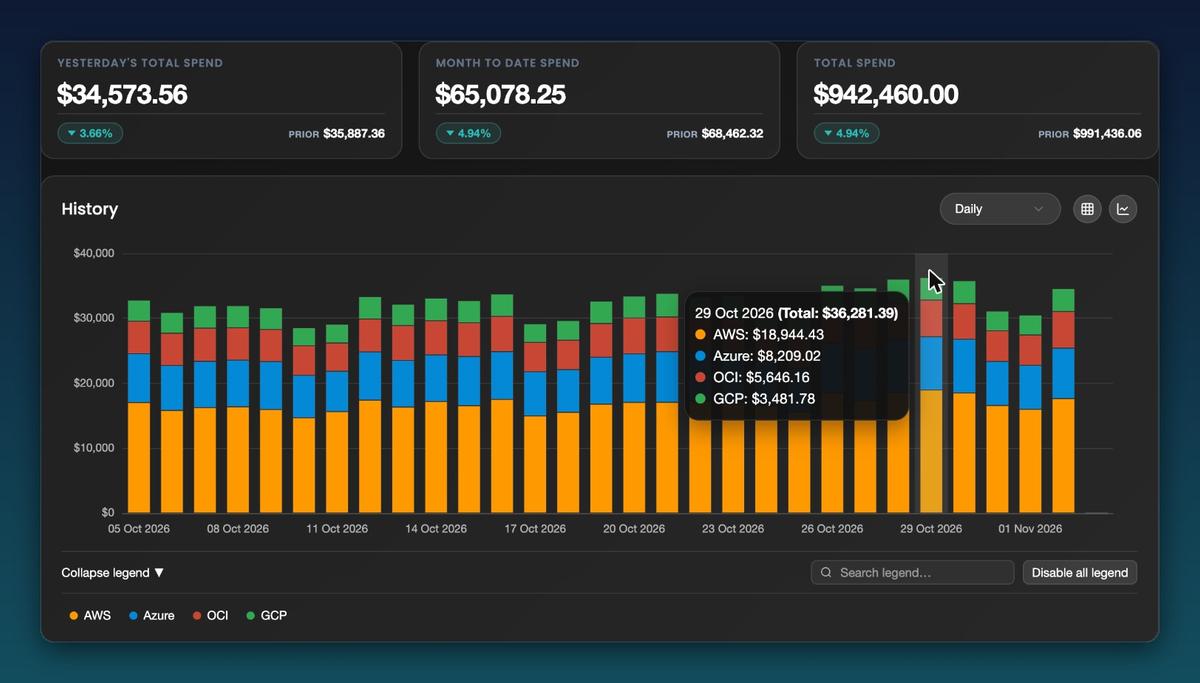
Hover any day to see exactly what each cloud cost. No more exporting Oracle's reports and stitching spreadsheets together at month end.
Drill into every Oracle service
Filter to OCI and the same view breaks your Oracle spend down by service: Compute, Autonomous Database, Block Storage, OCI Kubernetes Engine and the rest.
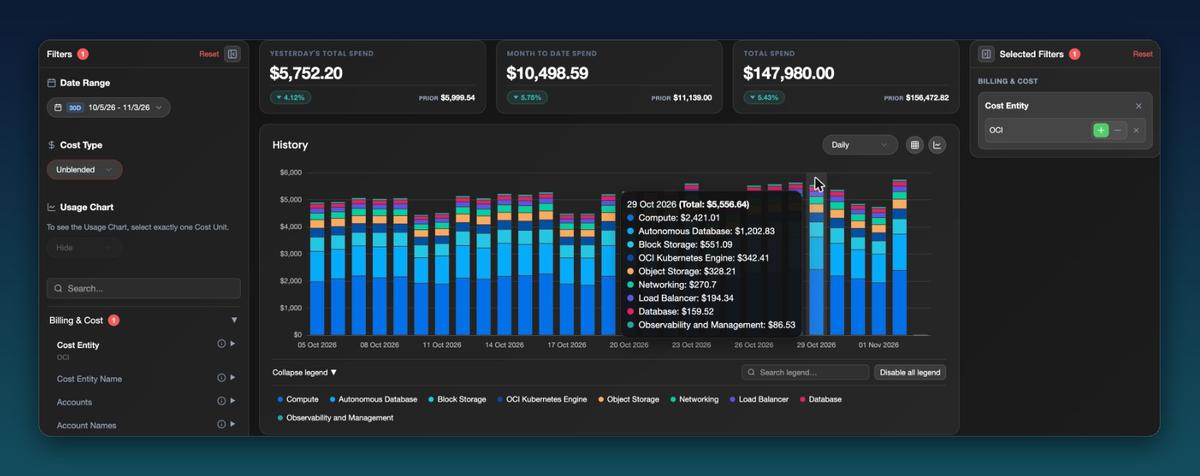
Scroll down for the table. You can see which services are growing and which are shrinking compared with the previous 30 days, and download it all as a CSV.
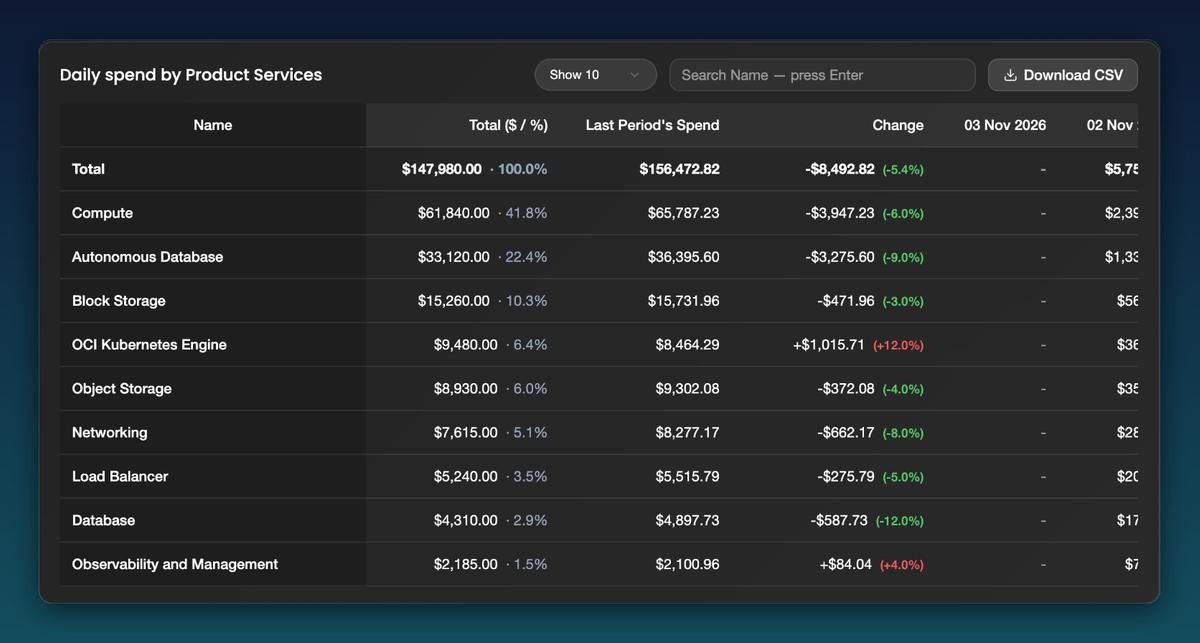
Explorer screenshots show sample data.
The bottom line: About 10 minutes from clicking the Oracle tile to seeing your Oracle spend next to every other cloud, with read-only access you can audit line by line and up to a year of history loaded for you.
Connect your Oracle tenancy in five steps
- Go to Settings, scroll to Cloud Provider Onboarding and click Oracle Cloud Infrastructure.
- Name the integration, click Generate key, then Copy key.
- Click Deploy to Oracle Cloud and sign in as a tenancy administrator. Paste the key into the nOps public key field, select Run apply and click Create.
- When the job succeeds, open its Outputs and copy nops_connection_code.
- Back in nOps, paste the code on the Connect step, click Verify, then Done.
Want to try it out in your own environment? Get started with a personalized demo by visiting nOps.io.
nOps manages $5 billion in cloud and AI spending and was recently ranked #1 in G2’s Cloud Cost Management Category.
Frequently Asked Questions
Who needs to run the setup?
A tenancy administrator in Oracle Cloud (a member of the Administrators group) runs the stack, because it creates a user, a group and a root-compartment policy. An nOps admin runs the wizard. One person can do both, or two people can work through the same wizard.
What can nOps see in my tenancy?
Only your cost and usage reports, plus which Oracle organization your tenancy belongs to. Oracle stores the reports in a bucket it owns, not in your tenancy. nOps can't see, create, change or delete any resource, can't read your own Object Storage buckets, and can't touch billing settings, budgets or subscriptions.
Does nOps ever see a password or private key from my tenancy?
No. nOps creates the key pair and gives you only the public key. The nOps user has no console password, so it can only sign in with that API key. The connection code you paste back holds IDs and a fingerprint, nothing secret.
How long until I see my Oracle costs in nOps?
Oracle writes a new FOCUS report about every 6 hours, and a report can be up to 24 hours late. After you verify, nOps loads up to the last 12 months of reports and then checks for new ones every day. If your tenancy is brand new, the first report can take up to a day to appear.
We use Oracle Organizations. Which tenancy do I connect?
Connect the parent tenancy. Oracle writes the cost reports for the whole organization there, and they include every child tenancy. If you connect a child tenancy by mistake, nOps warns you and names the parent.
Can I connect more than one tenancy?
Yes. Add one integration per tenancy and run the stack once in each, with that integration's own public key. nOps won't let you connect the same tenancy twice.
Which region do I deploy the stack in?
Any region works. The stack always creates its user, group and policy in your home region, because that's where Oracle keeps identity resources and cost reports.
Which tenancies are supported?
Metered tenancies in Oracle's commercial realm (tenancy OCIDs that start with ocid1.tenancy.oc1..). Oracle doesn't produce cost reports for non-metered tenancies, and government realms aren't supported yet.
What if I need to stop partway?
Click Finish later. The integration shows Action Required and nOps reads nothing from it. When you're ready, click Continue Setup on its card in Settings. Your key stays the same, so if you've already run the stack, you don't need to run it again.
How do I disconnect Oracle Cloud?
Delete the integration in Settings, which also deletes nOps's private key. Then open the nOps stack in Resource Manager and click Destroy to remove the policy, user, API key and group. To cut off access instantly, delete the API key on the nOps user.
How do I get started?
If you're already on nOps, open Settings and click Oracle Cloud Infrastructure. New to nOps? Book a demo and we'll walk you through connecting your own tenancy.