
Introducing Automated AI Budget Governance for Anthropic & Cursor
Today, we are announcing automated budget governance for Anthropic and Cursor.
AI spend is out of control because it’s difficult to measure which initiatives are delivering ROI and which ones are not. But managing AI spend doesn’t have to mean overcorrecting from token-maxxing to hard caps that slow teams down. There’s a practical middle ground.
Here at nOps, we’ve been working on a solution for organizations to have complete control over their AI costs.
How It Works
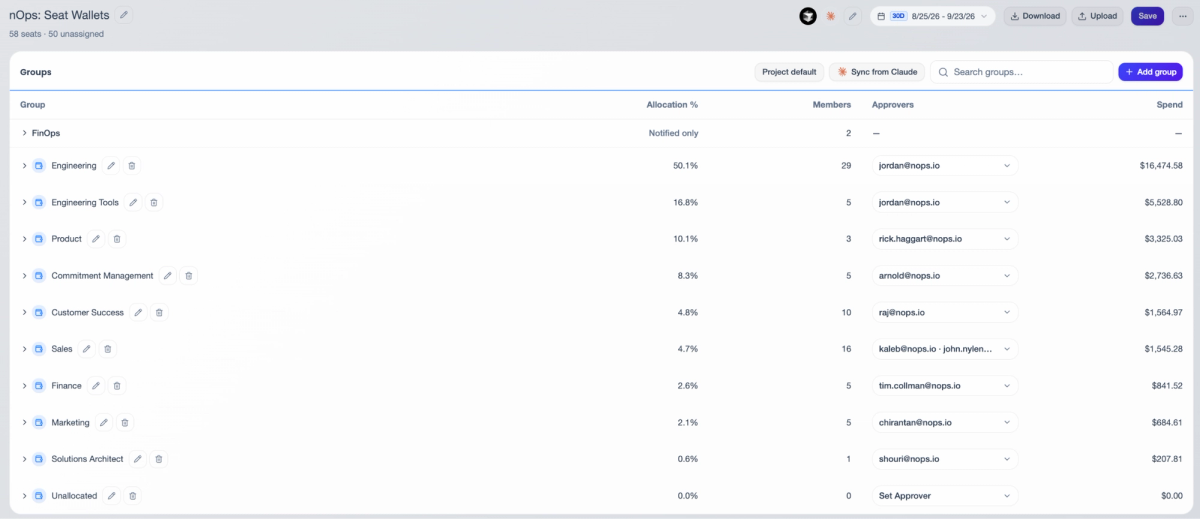
nOps walks you through allocating 100% of your AI costs across Anthropic and Cursor.
Connect your Anthropic Enterprise and Cursor accounts. Quickly allocate all of your costs across different teams, business units, and initiatives. Set up Approvers for each group.
Budget by Group
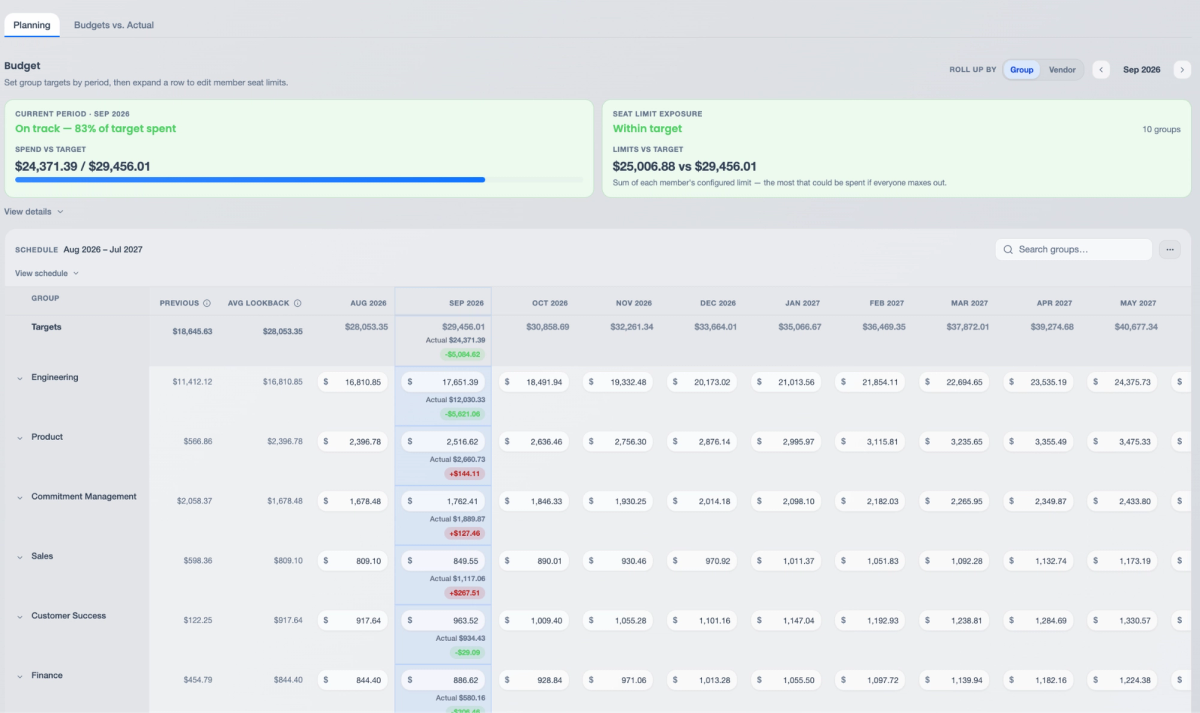
Approvers can create AI spend targets at the group level.
You can see how your group budget correlates to the total individual spend limits allocated to the members of your group. For example, if your total individual spend limits exceed your group-level budget, then you are at risk of going over the budget even without any additional spend limit approvals. You can track ongoing AI spend against these budgets to know if you are on track or if budget adjustments are needed.
Rebalance seat spend limits
Dynamically adjust spend limits of users to keep them unblocked while staying within the budget target.
Rebalancing allows Approvers to dynamically adjust the spend limits of individual users within their group so they aren't blocked. Users who need more can receive a higher limit, while users who need less can have their spend limit reduced, keeping the whole group "balanced" within its overall group-level budget target.
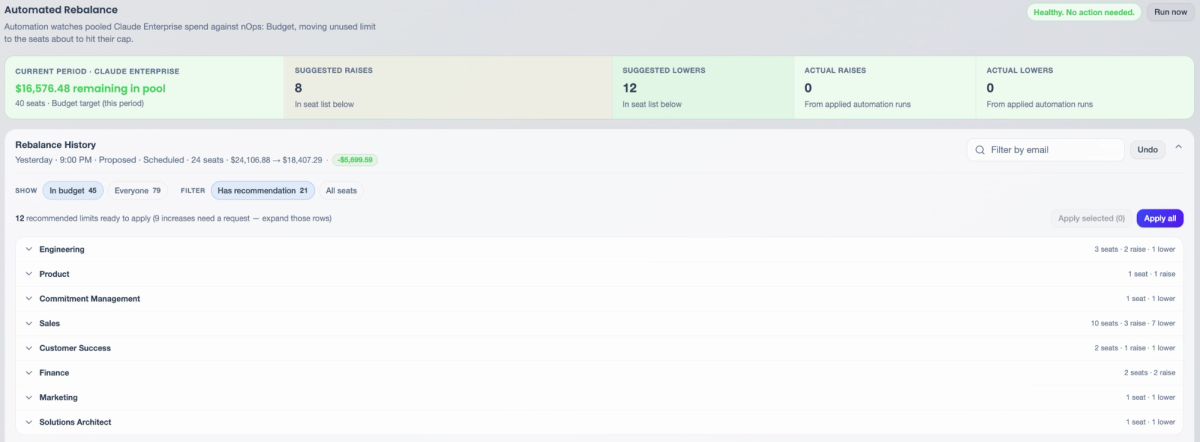
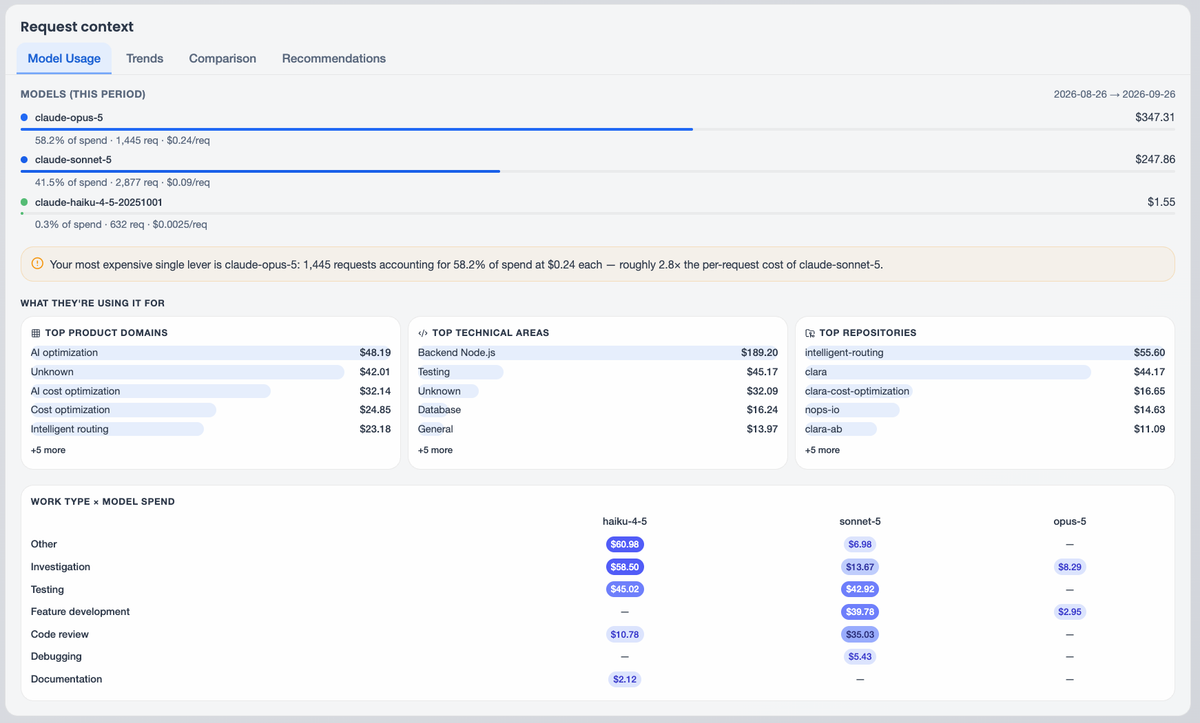
When an Approver decides to rebalance spend limits, they have the full context of that user's usage and spend patterns available to them to make the best decision.
Create Seat Level Budget Thresholds and Approval Policies
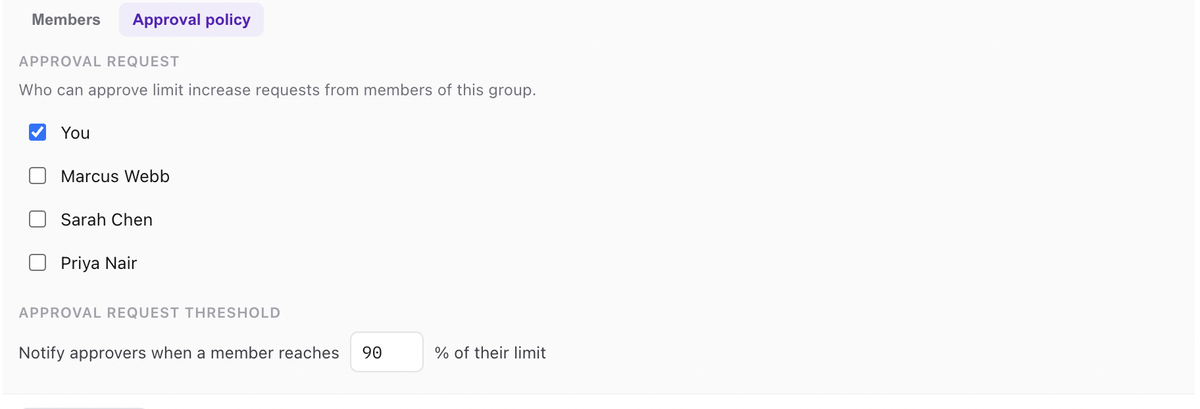
For each group, define Approvers and trigger thresholds.
For each group, you can create approval policies like:
- Who is authorized to approve the limit increase
- What threshold triggers the approval request
Automated Approval Process
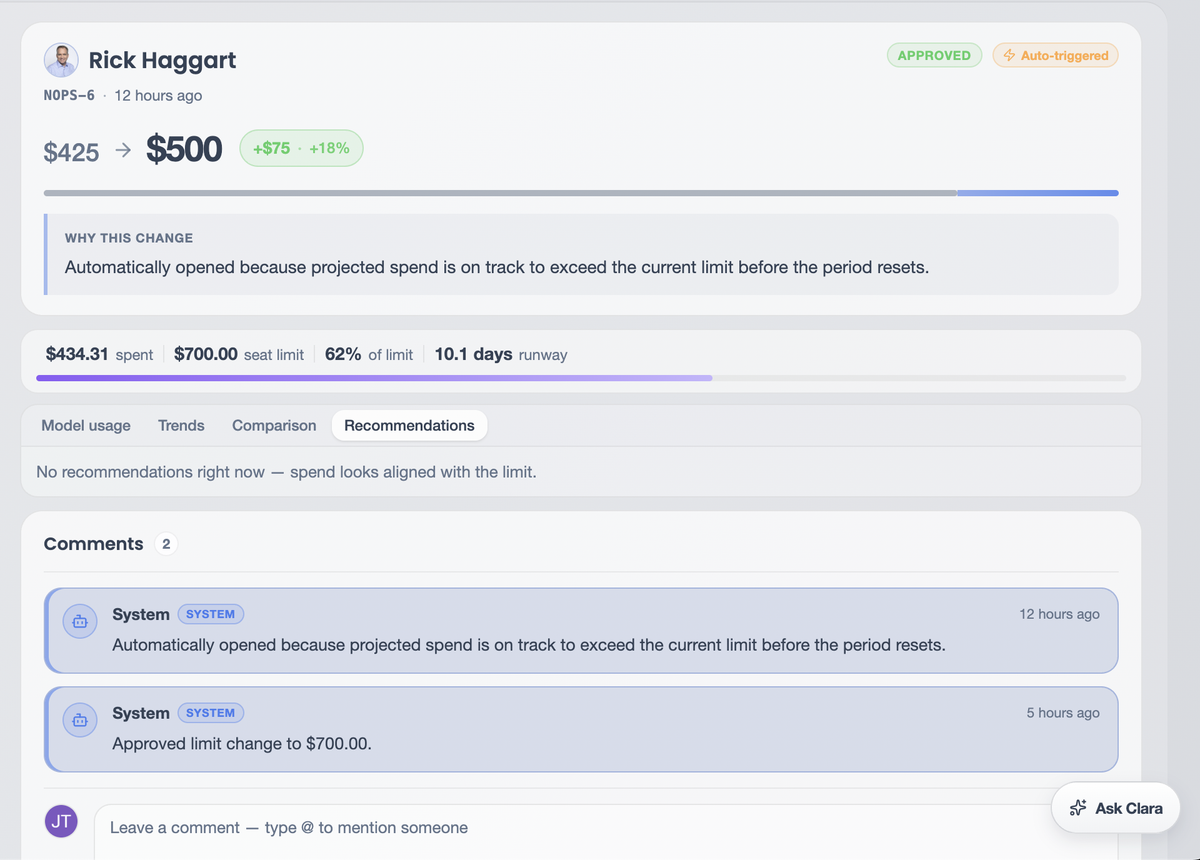
When a user hits a seat-limit threshold, nOps automatically triggers the approval workflow.
The approval workflow includes the complete context of the latest usage and spend pattern for that user.
User or Manager Initiated Approval Process
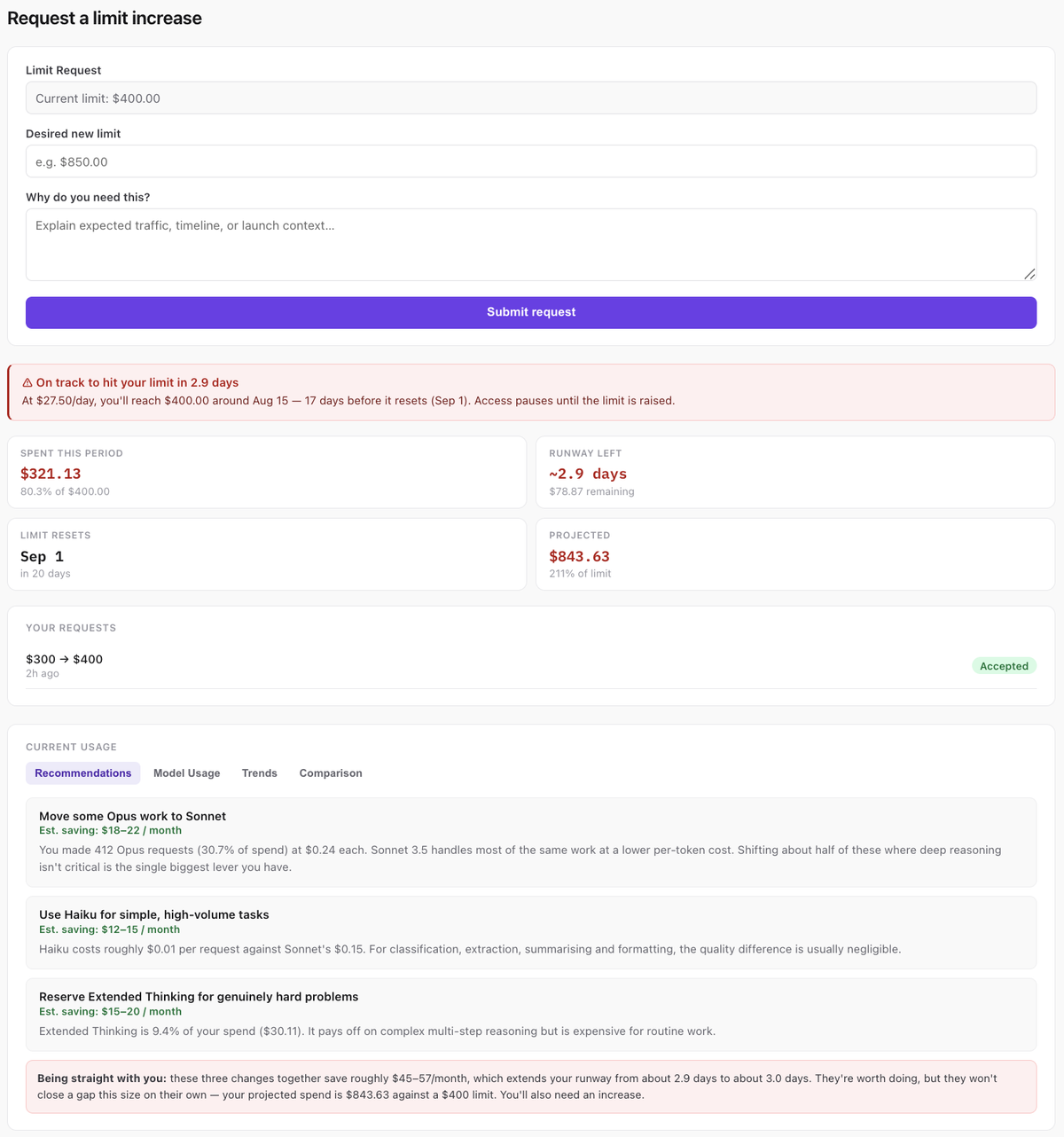
Users or Managers can proactively trigger limit increase or decrease workflows.
These requests also include the complete context of the usage patterns, which is visible to both users and managers.
Review, Collaborate, and Approve
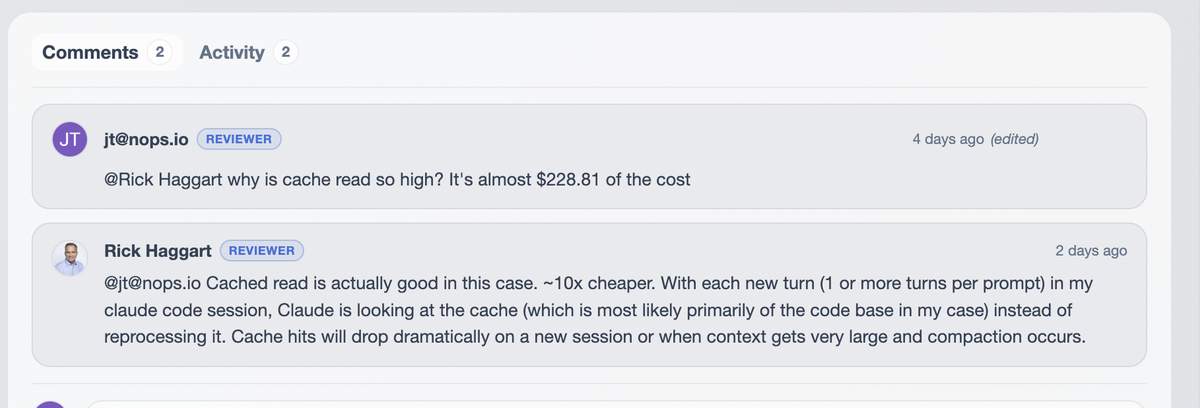
As an Approver, you can collaborate with the user, give them feedback on their AI usage, and allow them to take action on the recommendations. You can also change the limit going forward or temporarily approve the request for a few days.
Tracking and Forecasting
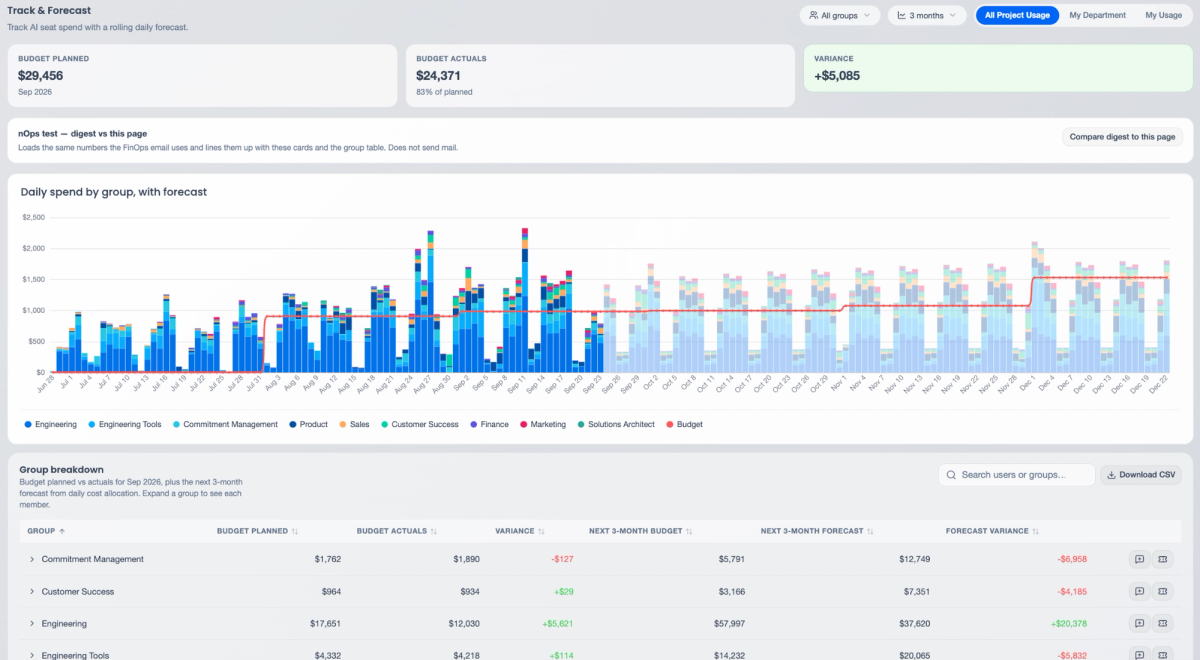
Group Approvers can track AI spending against budget targets.
Approvers can track AI spending against budget targets and take proactive actions depending on the situation. These could include driving more adoption, optimizing spend, or informing finance of potential budget variances.
Work Attribution
Ready to Get Started?
Already using nOps?
Contact your Customer Success Manager or the nOps Support Team if you have any questions about Anthropic and Cursor cost governance.
New to nOps?
nOps was recently ranked #1 with five stars in G2’s Cloud Cost Management category, and we optimize $5+ billion in cloud spend for our customers.
Join our customers using nOps to understand your cloud costs and leverage automation with complete confidence by booking a free savings analysis with one of our AI experts.
Demo
AI-Powered Cost Management Platform
Discover how much you can save in just 10 minutes!
Book a Demo